The verification email has not arrived.
Check spam or junk, confirm the email address, then request another sign-up email.
Sign up, verify your email, finish your profile, and choose how PHIXTT contacts you.
Open Sign up, enter your name, email, and password, then submit the form.
Open the PHIXTT email and use its verification link. Return to PHIXTT when verification is complete.
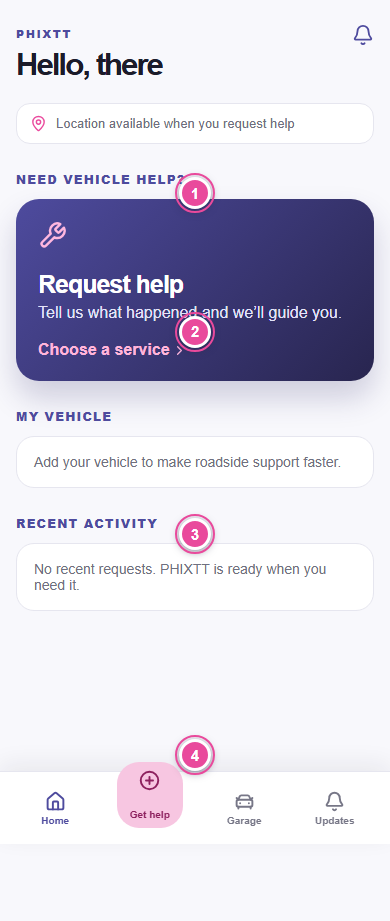
Enter the verified email and password. PHIXTT opens your customer dashboard.
On Sign in, choose Forgot password. Use the secure email link to set a new password.
Open More, then Account & settings. Add your personal details, emergency contact, and saved places.
On your account page, choose Add photo. Use a clear JPG, PNG, or WebP image under 5 MB.
Open Notification preferences and choose the service, safety, account, and marketing updates you want.
Check spam or junk, confirm the email address, then request another sign-up email.
Request a new reset email. For safety, old and used links expire.