Help Centre
Provider Help · AVAILABLE NOW

Maintain your public profile, service vehicle, and ratings

Keep customer-facing identity and operational information accurate without exposing private verification evidence.
Download full guide
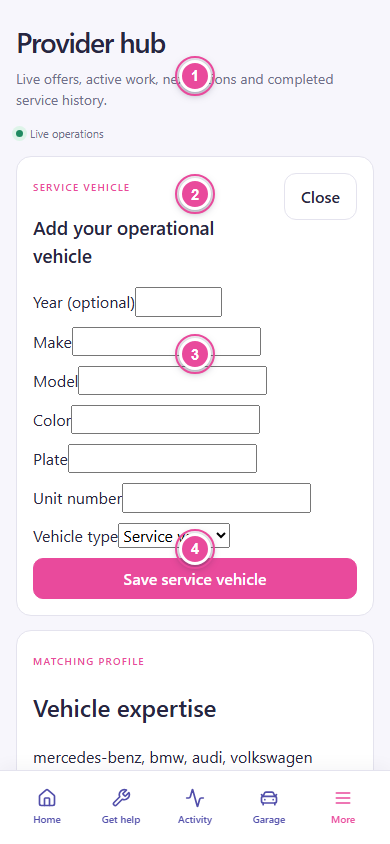
PHIXTT Provider hub showing public logo, service vehicle, matching profile, verification, and customer feedback.

Before you start

  • Use only professional public media you are authorized to publish.

Step by step

  1. 1

    Add a public logo

    Upload a JPG, PNG, or WebP under 5 MB. It becomes customer-visible only after PHIXTT approval.

  2. 2

    Understand private media

    Government ID, verification selfie, and business documents are private and never used on customer cards.

  3. 3

    Register a service vehicle

    Add make, model, colour, plate, unit number, vehicle type, and towing capability. Keep the primary vehicle current.

  4. 4

    Review vehicle expertise

    Open Edit matching capabilities to update supported makes, specialties, powertrains, exclusions, and service-specific rules.

  5. 5

    Review ratings

    The Provider hub shows the average, count, and visible customer feedback tied to completed assignments.

  6. 6

    Keep settings current

    Update availability and application details when your team, coverage, or services change.

Troubleshooting

The public logo is not visible.

Check whether it is still awaiting PHIXTT approval.

A rating is inappropriate or unsafe.

Contact PHIXTT support. Staff can review it without deleting the audit record.

What to do next

  • Accurate profile data helps customers recognize and trust the assigned provider.

Related guidance

Provider HelpJoin PHIXTT and set vehicle specialtiesProvider HelpSet availability and respond to offers
Guide version 2026.08.17 · Reviewed 17 August 2026 · App reference 4995723